

 Mon contenu
 Homme
Homme




- Mike118 aime ceci
#127214 Vigibot volant dans un avion
 Posté par
- 22 septembre 2026 - 09:56
Posté par
- 22 septembre 2026 - 09:56
#127176 Vigibot volant dans un avion
Posté par
- 16 septembre 2026 - 09:42

#122357 how to use the e3372h with stick firmware (instead of hilink firmware)
Posté par
- 16 novembre 2025 - 15:20
The e3372h comes in multiple versions as well 2 different firmwares.
How to tell them apart:
A. the hilink firmware is plug and play on raspbian. Once inserted, run `ifconfig` and you'll see a new `eth1` interface. Usually with an assigned IP of 192.168.8.100.
B. the stick firmware, once inserted, run `ifconfig` and you'll see a new `wwan0` interface, as well as these new devices: /dev/cdc-wdm0 , /dev/cdrom and probably /dev/sg0 , /dev/sg1 and /dev/sr0 .
How to set them up:
A. hilink firmware is plug and play
B. stick firmware needs setup. I found 2 methods that are supposed to work:
B.1. using mbimcli:
This does not work reliably. It fails silently from time to time.
B.1.1. RunB.1.2. If it works (takes up to 90 seconds), automatically start it on boot:
RunInsertApn `internet` might be different for your ISP.
B.1.3.InsertB.1.4. Enable service:
How to tell them apart:
A. the hilink firmware is plug and play on raspbian. Once inserted, run `ifconfig` and you'll see a new `eth1` interface. Usually with an assigned IP of 192.168.8.100.
B. the stick firmware, once inserted, run `ifconfig` and you'll see a new `wwan0` interface, as well as these new devices: /dev/cdc-wdm0 , /dev/cdrom and probably /dev/sg0 , /dev/sg1 and /dev/sr0 .
How to set them up:
A. hilink firmware is plug and play
B. stick firmware needs setup. I found 2 methods that are supposed to work:
B.1. using mbimcli:
This does not work reliably. It fails silently from time to time.
sudo apt install libmbim-utils
sudo mbimcli -d /dev/cdc-wdm0 --query-device-caps
sudo mbim-network /dev/cdc-wdm0 start
Run
sudo nano /etc/mbim-network.conf
APN="internet"
USERNAME=""
PASSWORD=""
IP="dhcp"
B.1.3.
sudo nano /etc/systemd/system/mbim-network.service
[Unit]
Description=MBIM network connection
After=network.target usb-devices.target
Wants=network.target

[Service]
Type=simple
ExecStart=/usr/bin/mbim-network /dev/cdc-wdm0 start
ExecStop=/usr/bin/mbim-network /dev/cdc-wdm0 stop
RemainAfterExit=yes

[Install]
WantedBy=multi-user.target
sudo systemctl daemon-reload
sudo systemctl enable --now mbim-network.service
B.2. using network-manager
sudo apt update
sudo apt install modemmanager modem-manager-gui-help network-manager
nmcli connection add type gsm ifname cdc-wdm0 con-name stick apn internet (gsm.pin ****)
sudo nmcli connection modify stick connection.autoconnect yes
nmcli connection up stick
Entry apn `internet` might be different for your ISP.
- Mike118 aime ceci
#122356 4G Antenna tests for mobile data connections like Huawei e3372h
Posté par
- 16 novembre 2025 - 14:58
In this Thread: various external antennas for 4G connections and their RSSI signal reception strength.
1) huawei e3372h hilink firmware how to read
2) huawei e3372h stick firmware how to read
3) antenna tests
1) signal strength hilink fw
Run command:
HUAWEIROUTERIP='192.168.8.1'
RESPONSE=`curl -s -X GET http://$HUAWEIROUTERIP/api/webserver/SesTokInfo`
COOKIE=`echo "$RESPONSE" | grep SessionID= | cut -b 10-147`
TOKEN=`echo "$RESPONSE" | grep TokInfo | cut -b 10-41`
curl --silent -b $COOKIE -c $COOKIE -H "X-Requested-With: XMLHttpRequest" http://$HUAWEIROUTERIP/api/monitoring/status --header "__RequestVerificationToken: $TOKEN" --header "Content-Type:text/xml"
Source: https://forums.raspb...c.php?p=2116154
2) signal strength stick fw
sudo mbimcli -d /dev/cdc-wdm0 --query-signal-state
3) antenna tests


Add your own antenna tests into the comments ↓
- Mike118 aime ceci
#121531 Thermal camera on internet controlled robot
Posté par
- 25 octobre 2024 - 10:33
feel free to try the thermal camera and robot «CakeOnIce» (online during GMT day) on https://vigibot.com
got the infiray p2 pro thermal camera.
connected to PC it works like a webcam.
it recalibrates every 10s with an audible click, so i needed a way to turn it off when not in use.
i used uhubctl from https://github.com/m...raspberry-pi-4b
off:
fortunately the 4B allows usb host on the "power in" type c, to which i connected the microphone to keep it powered. `otg_mode=1`
https://forums.raspb...ic.php?t=246348
wrote a script `vim thermal_power_manager.sh`:
and added to CMDDIFFUSION in /boot/robot.json
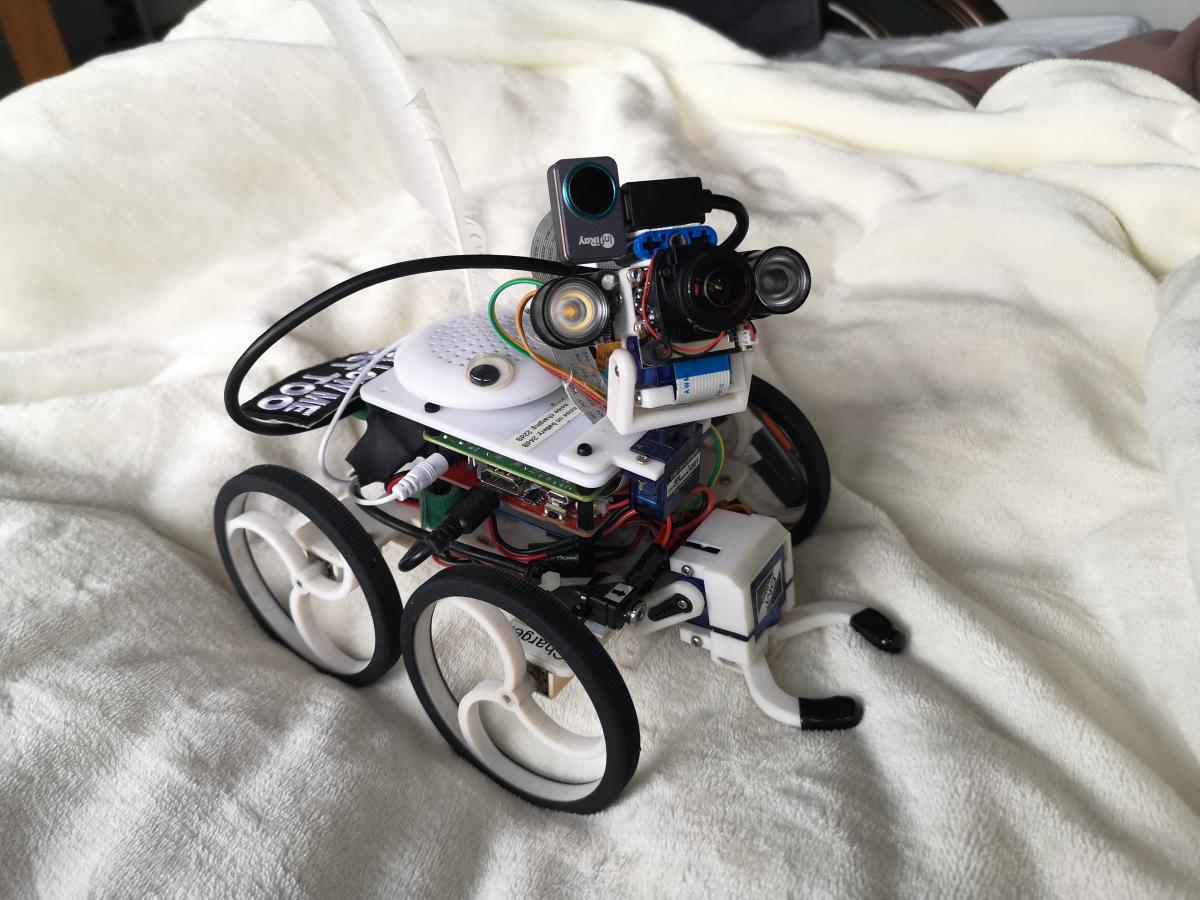
got the infiray p2 pro thermal camera.
connected to PC it works like a webcam.
it recalibrates every 10s with an audible click, so i needed a way to turn it off when not in use.
i used uhubctl from https://github.com/m...raspberry-pi-4b
off:
sudo uhubctl -l 1-1 -a off
sudo uhubctl -l 2 -a off
all 4 usb are switched together, turning off the usb microphone meant restarting the vigibot client every time.
fortunately the 4B allows usb host on the "power in" type c, to which i connected the microphone to keep it powered. `otg_mode=1`
https://forums.raspb...ic.php?t=246348
wrote a script `vim thermal_power_manager.sh`:
#!/bin/bash
# Function to handle cleanup on SIGTERM
cleanup() {
    echo "Stopping FFmpeg process..."
    kill $ffmpeg_pid
    wait $ffmpeg_pid 2>/dev/null

    echo "Disabling power to USB hub and thermal camera..."
    uhubctl -l 1-1 -a 0 > /dev/null
    uhubctl -l 2 -a 0 > /dev/null
    exit 0
}

# Enable power to USB hub and thermal camera
echo "Enabling power to USB hub and thermal camera..."
uhubctl -l 1-1 -a 1 > /dev/null
uhubctl -l 2 -a 1 > /dev/null

# Start FFmpeg stream
sleep 2
echo "Starting FFmpeg stream..."
ffmpeg -loglevel warning -i /dev/video1 -c:v h264_omx -profile:v baseline -b:v 1500000 -flags:v +global_header -bsf:v dump_extra -f rawvideo -vf 'scale=640x480' tcp://127.0.0.1:8043 &
ffmpeg_pid=$!

# Trap SIGTERM signal and execute the cleanup function
trap cleanup SIGTERM SIGINT

# Wait for the FFmpeg process to finish
wait $ffmpeg_pid

# Disable USB hub power for thermal camera after ffmpeg exits
uhubctl -l 1-1 -a 0 > /dev/null
uhubctl -l 2 -a 0 > /dev/null

echo "Stream stopped and USB power disabled."
exit 0
compiled it `shc -f thermal_power_manager.sh`, `chmod +x thermal_power_manager.sh.x`and added to CMDDIFFUSION in /boot/robot.json
#117238 [Guide] How To Create Timelapse Videos With Your Robot
Posté par
- 18 novembre 2022 - 20:33
UPDATE 2022.11.22: Find the updates about this Guide on GitHub: https://github.com/e...spberry-vigibot
## how to create timelapse videos with your robot
Vigibot has the possibility to take photos regularly. the following script will regularly create timelapse videos using the photos, the video can then be played directly from the Vigibot website.
Note: if your camera has a motorized IR cut filter, only do step 5 and check if it clicks every minute when it's dark. this would wear out the motorized IR cut filter rather quickly. an option is to unplug the motorized IR cut filter connector on the camera module. if you have other ideas, let me know.
1. login into your robot over ssh
2. add a tmpfs entry, run:
`sudo nano /etc/fstab`
add:
```
tmpfs /tmp tmpfs defaults,noatime, nosuid,size=20m 0 0
```
3. run `sudo reboot`
4. run `df` and make sure there's a `/tmp` entry.
5. In hardware config set `SNAPSHOTSINTERVAL` to `1` to take a photo every 1 minute.
Note: Snapshots are publicly accessible on https://vigibot.com/captures/
6. create folder
```
sudo mkdir /usr/local/timelapser/
```
7. install script
```
sudo wget -P /usr/local/timelapser/ https://raw.githubus...n/timelapser.sh
```
8. make script executable
```
sudo chmod +x /usr/local/timelapser/timelapser.sh
```
9. run the script manually and leave it running
```
sudo /usr/local/timelapser/timelapser.sh
```
10. open a second ssh connection to your robot
11. run
```
sudo ln -s /usr/bin/ffmpeg /usr/local/vigiclient/processdiffintro
```
12. run
```
sudo ln -s /tmp/timelapse_short.mp4 /usr/local/vigiclient/timelapse_short.mp4
```
13. run
```
sudo ln -s /tmp/timelapse_long.mp4 /usr/local/vigiclient/timelapse_long.mp4
```
14. copy the whole `CMDDIFFUSION` array from `/usr/local/vigiclient/sys.json` into your `/boot/robot.json` file. (if Vigibot pushes an update to `sys.json` you will have to manually update/re-copy the array.)
15. add the 2 following entries to the copied `CMDDIFFUSION` array.
```
] , [
"/usr/local/vigiclient/processdiffintro",
" -loglevel fatal",
" -stream_loop -1",
" -re",
" -i /usr/local/vigiclient/timelapse_short.mp4",
" -c:v h264_omx",
" -profile:v baseline",
" -b:v BITRATE",
" -flags:v +global_header",
" -bsf:v dump_extra",
" -f rawvideo",
" -vf 'scale=640x480:force_original_aspect_ratio=decrease,pad=ih*4/3:ih:(ow-iw)/2:(oh-ih)/2'",
" tcp://127.0.0.1:VIDEOLOCALPORT"
] , [
"/usr/local/vigiclient/processdiffintro",
" -loglevel fatal",
" -stream_loop -1",
" -re",
" -i /usr/local/vigiclient/timelapse_long.mp4",
" -c:v h264_omx",
" -profile:v baseline",
" -b:v BITRATE",
" -flags:v +global_header",
" -bsf:v dump_extra",
" -f rawvideo",
" -vf 'scale=640x480:force_original_aspect_ratio=decrease,pad=ih*4/3:ih:(ow-iw)/2:(oh-ih)/2'",
" tcp://127.0.0.1:VIDEOLOCALPORT"
]
```
`robot.json` should then look something like this:

16. restart the Vigibot client
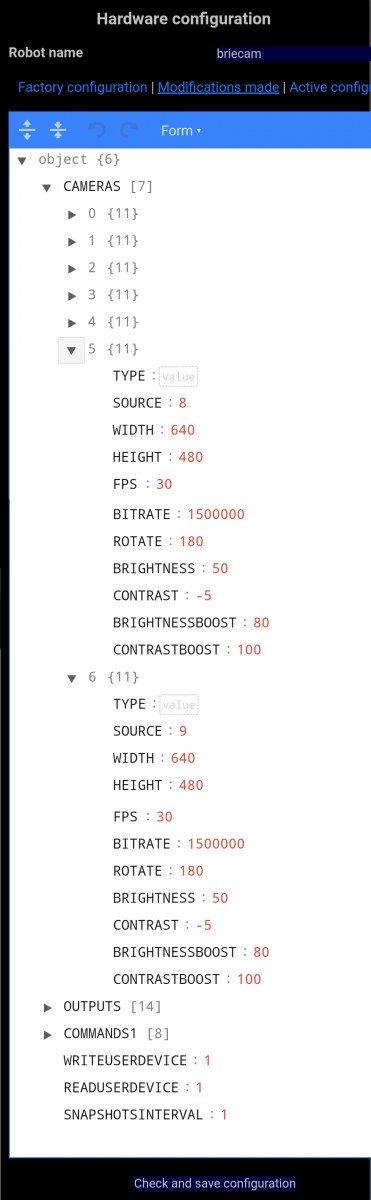
17. add 2x `CAMERA` entries in hardware config and set `SOURCE` to the `CMDDIFFUSION` array index number of your entry. In the above screenshot that's array index number `8` and `9`.
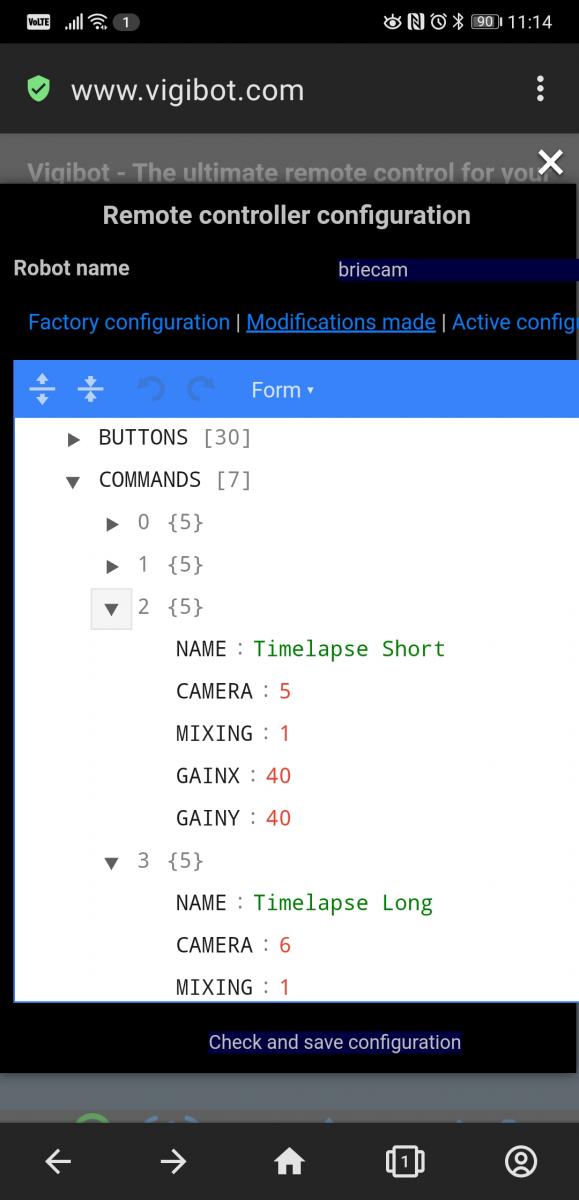
18. add 2x `COMMAND` entries in remote control config and set `CAMERA` to the created camera number. for me it was `5` and `6`.
19. run `ls -l /tmp/`, check if `timelapse_short.mp4` and `timelapse_long.mp4` exist and check if it's working on vigibot.
20. if it works, automatically start it on boot: run `sudo nano /etc/rc.local` and add the following above the line `exit 0`
```
/usr/local/timelapser/timelapser.sh > /dev/tty0 &
```
### additional information / explanations:
thanks to Pascal for some of the above instructions.
it seems `enfuse` hdr images cause ffmpeg to fail. do not set `EXPOSUREBRACKETING`
### for future reference: manual cli commands
- use most recent images for short clip. takes about 10 seconds to create.
```
#target length: 1h in 6s playback
#'-sseof 2': use only most recent 2 seconds of input
#ffmpeg may be assuming a different fps value in its -sseof calculation
#'-r 10': set conversion to 10 fps
#'-filter:v fps=fps=30': force 30 fps output so thr 30 fps vigibot captures work
```
```
sudo ffmpeg -sseof -2 -r 10 -pattern_type glob -i "/home/pi/timelapse/*.jpg" -s 640x480 -vcodec libx264 -filter:v fps=fps=30/tmp/timelapse_short.mp4 -y
```
- long clip. takes about 90 seconds to create.
```
#target length: 24h in 40s playback
#"-sseof 52": use only most recent 52 seconds of input
#ffmpeg may be assuming a different fps value in its -sseof calculation
#'-r 30': set conversion to 30 fps
#'-filter:v "setpts=0.5*PTS"': only pass 50% of the frames, drop the others. this halves timelapse_long playback duration. (e.g. '0.2' would only pass 20% of the frames).
```
```
sudo ffmpeg -sseof -52 -r 30 -pattern_type glob -i "/home/pi/timelapse/*.jpg" -filter:v "setpts=0.5*PTS" -s 640x480 -vcodec libx264 /tmp/timelapse_long.mp4 -y
```
#116103 Servo benchmark stress test
Posté par
- 25 juin 2022 - 14:26
UPDATE 2022.08.22: i didn't do a good job checking if the servos fit into the vigibot 3D files. unfortunately no metal gear 180° fit the vigibot 3D files. Doman DM-S0090MD 270° is the only metal gear servo that fits. Bokins plans on modifying the 3D files to make the DIYMore MG90S fit.
servo benchmark
goal: find robust servo models for a Minus-Type robot, in the hopes of extending time between servo failures and repairs. A per piece price of up to 20$ may be acceptable (N20 Pololu motors are also in that range). Minus-Type uses Micro Servos, also called 9g or sg90.
tested are the following servo models:
1) DIYMore SG90, plastic gear, 1$: recommended by Vigibot. are very quick which makes for a comically fast head nodding that people find hilarious. used on most of my robots (not WalterJakob's pan-tilt), personal failure rate is pretty high. EDIT: a resonating shaking may happen if the weight is too far from the axis line (used as pan servo on PepitoBots). i assume a drawback of the PID(?) regulator in use, which is probably also responsible for the desired comically fast nodding. same applies to DIYMore MG90S metal gear servo (used as pan servo on Briecam).
2) DIYMore MG90S, metal gear, 3$: had servos in the past that were DOA or didn't work on the lower battery voltage, unfortunately can't remember the exact reason. EDIT: read above servo #1 notes. EDIT: servo doesn't fit the current 3D printer files, requires adjustment.
3) TiankongRC TS90A, plastic gear, 270°, 3$
4) Doooman Hobby DM-S0090MD, metal gear, 270°, 6$
5) DFRobot DS-S006L, plastic gear, 9$: has a clutch to protect internal gears.
6) FiTec FS90MG, metal gear, 6$
7) Spektrum A330, plastic gear, 18$
8) Futaba S3114, plastic gear, 20$: "sub-micro" servo doesn't fit the current 3D printer files, requires adjustment.
9) HiTec HS-55+, plastic gear, 20$
10) HiTec HS-5055MG, metal gear, 30$
11) HiTec HS-65MG, metal gear, 30$
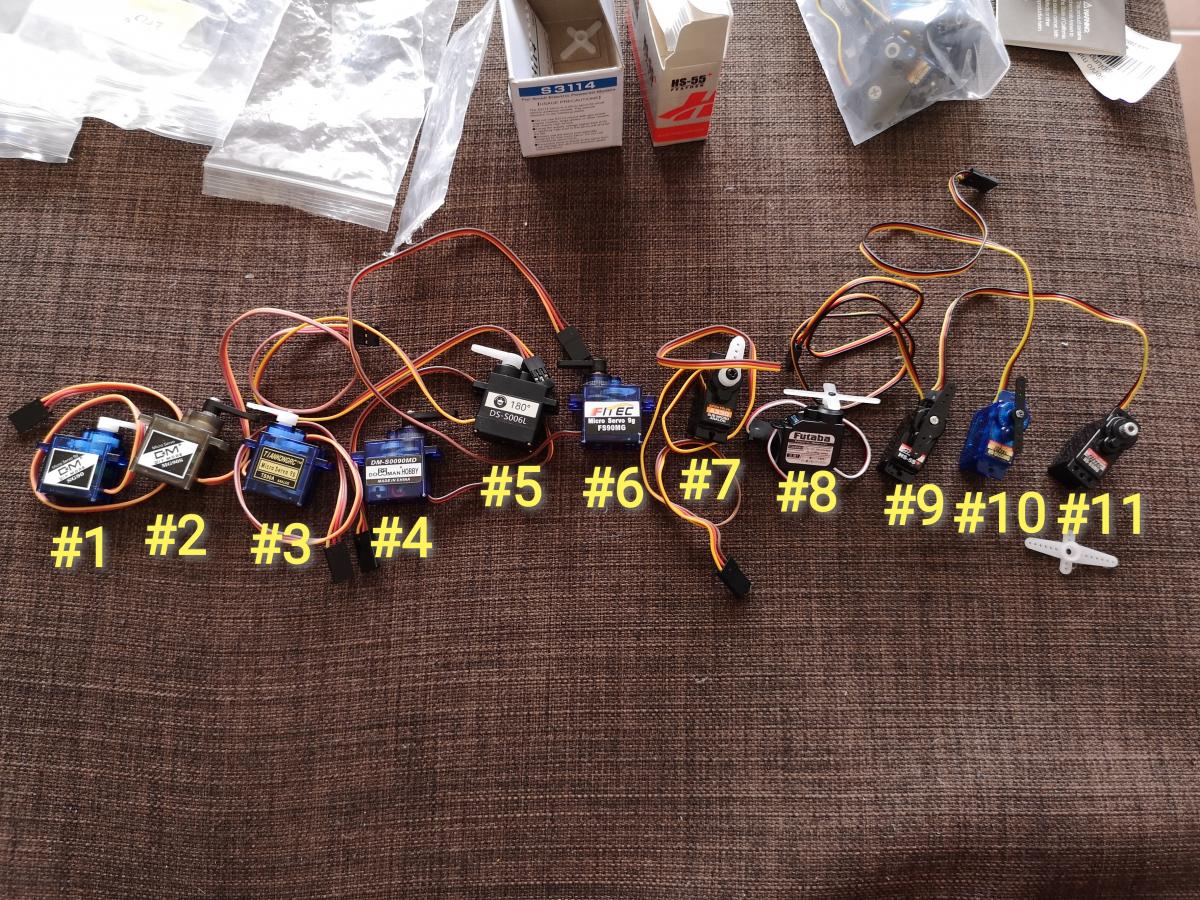
↓ See conclusions or table "benchmark table.xlsx" for servo failure times.
test tries to simulate real world usage, common scenarios:
• to work with Vbat voltage 3.3V - 4.2V
• usually low weight/momentum movements (camera is pretty lightweight)
• people may accidentally hit the robot
• robot may drive into walls or objects with a servo absorbing the hit
• servo may want to move into an object and be limited by it
stress test setup:
pre-test #0: power from 3.3V and check if servo is even functional (most servo specifications state a minimum operating voltage of 4V). stop movement with hand, to check if it stops immediately / gets stuck.
main test #1: power from 3.3V, move back and forth (90° - 0°) automatically (eg 1 cycle every 6s to keep temperature low), no weight attached. from time to time force into obstacle (180° position can't be reached) to simulate real world interaction. let run every night and check how many minutes they last before they stop working.
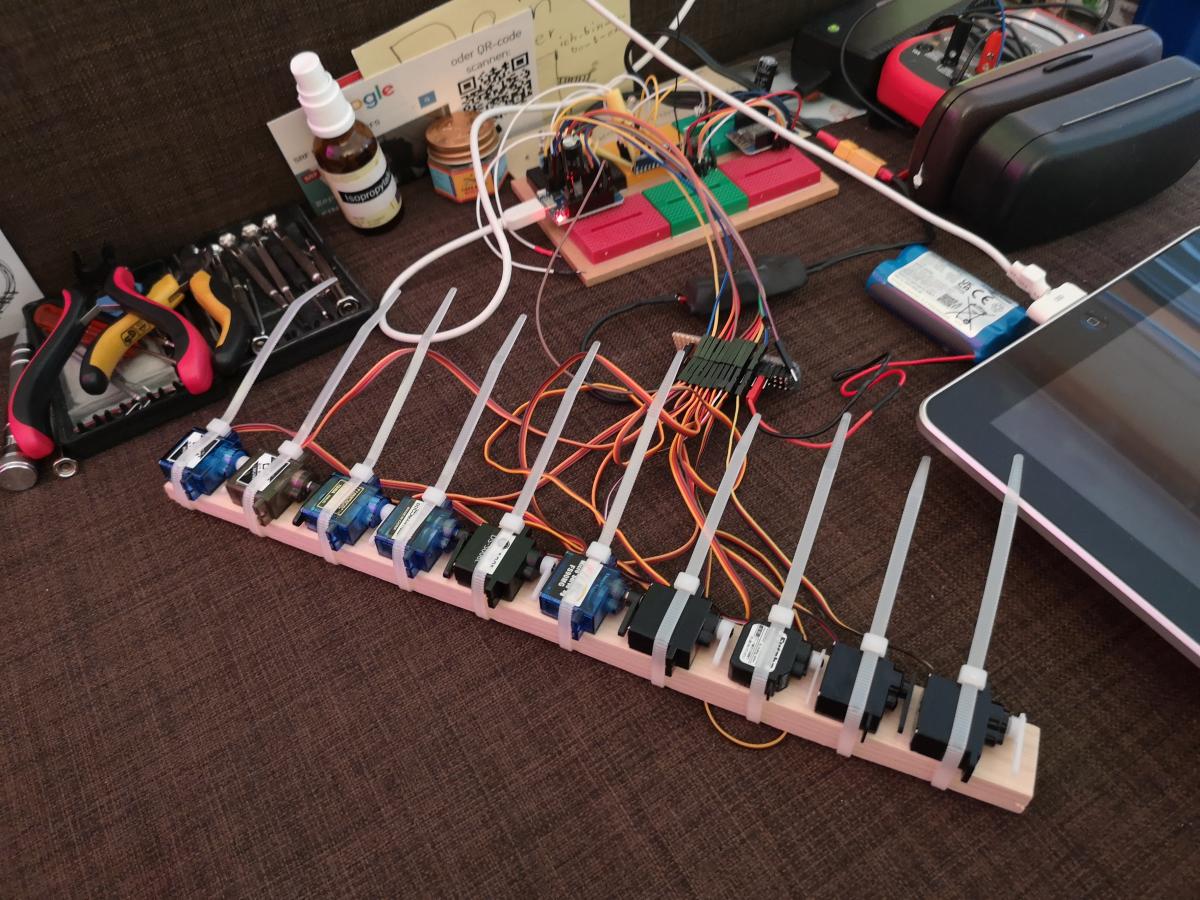
notes:
27.5.22: ran test #1 for 2400min (actual movement: 400min), 1 cycle (to 0° and back to 90°) every 6s, no failures.
-> replaced with 10A 3.3V power supply. increased speed from 1 cycle every 6s to 1 cycle every 2s. now movement from 3 servos overlap. can still be doubled. temperature IR meter: room = 27°C, servo avg = 35°C, servo max = 37°C.
28.5.22: ran test #1 for 480min (actual movement: 240min), 1 cycle every 2s no failures.
-> increased speed to 1 cycle every 1s. movement from 6 servos overlap, maximum possible. temperature IR meter: servo avg = 42°C, servo max = 46°C
29.5.22: ran test #1 for 800min (actual movement: 800min), 1 cycle every 1s,
-> divided runtime value by intensity to "actual movement" value.
Conclusion for Botkins / Minus-Type Robot:
6 servos had good behavior and more than acceptable runtime until failure.
Metal Gears:
• DIYMore MG90S: Okay. EDIT: .stl doesn't fit!
• FiTec FS90MG: Okay. EDIT: .stl doesn't fit!
• Doooman Hobby DM-S0090MD: Okay (Pan 270°: cable fatigue!)
Plastic Gears:
• DIYMore SG90: Okay
• TiankongRC TS90A: Okay (Pan 270°: cable fatigue!)
not recommend servos:
• DFRobot DS-S006L: Okay EDIT: auto-revert is annoying, drops objects in gripper by itself!
• Spektrum A330: No (failed early)
• Futaba S3114: No (.stl doesn't fit)
• HiTec HS-55+: No (Slow)
• HiTec HS-5055MG: No (3.3V unsupported)
• HiTec HS-65MG: No (Slow)
See table "benchmark table.xlsx" for servo failure times.
 benchmark table (1).xlsx 7,24 Ko
185 téléchargement(s)
benchmark table (1).xlsx 7,24 Ko
185 téléchargement(s)
#115084 Help - Freemove Car Kit on Vigibot
Posté par
- 04 janvier 2022 - 11:17
oh very cool it's working.
there's a comma too much in the config:
but glad it's running now!
regarding the rotation, i *think* you simply have to invert the GAINS8 on both "Right wheel" entries. remove the minus sign so it looks like this:
there's a comma too much in the config:
    },
,
    {
      "NAME": "Right wheel rear",
probably why you got an invalid syntax error.but glad it's running now!
regarding the rotation, i *think* you simply have to invert the GAINS8 on both "Right wheel" entries. remove the minus sign so it looks like this:
      "GAINS8": [
        1,
        1
      ],
- Mike118 aime ceci
#114101 How To Display Chat Text On Your Robot's Framebuffer
Posté par
- 22 août 2021 - 18:30
it's possible to write anything to `> /dev/tty0` and have it show up on the framebuffer. can be output of your custom scripts or even animations:
`sudo apt install sl cmatrix libaa-bin`
a passing train:
`sudo -s`
`/usr/games/sl > /dev/tty0`
matrix:
`sudo -s`
`cmatrix > /dev/tty0`
or a fire:
`sudo -s`
`aafire > /dev/tty0`
or follow the instructions here for an aquarium:
https://www.tecmint....un-in-terminal/
`sudo -s`
`asciiquarium > /dev/tty0`
`sudo apt install sl cmatrix libaa-bin`
a passing train:
`sudo -s`
`/usr/games/sl > /dev/tty0`
matrix:
`sudo -s`
`cmatrix > /dev/tty0`
or a fire:
`sudo -s`
`aafire > /dev/tty0`
or follow the instructions here for an aquarium:
https://www.tecmint....un-in-terminal/
`sudo -s`
`asciiquarium > /dev/tty0`
- Mike118 aime ceci
#114060 How To Display Chat Text On Your Robot's Framebuffer
Posté par
- 17 août 2021 - 16:00
add a framebuffer view:
- add a CAMERA in hardware config with SOURCE: 1
- add a COMMAND in remote control config and use the created camera number
display chat text on framebuffer:
- install dependencies:
`sudo apt install lolcat cowsay figlet`
-then edit robot.json
`sudo nano /boot/robot.json`
for a cow with a speech bubble, add:
- add a CAMERA in hardware config with SOURCE: 1
- add a COMMAND in remote control config and use the created camera number
display chat text on framebuffer:
- install dependencies:
`sudo apt install lolcat cowsay figlet`
-then edit robot.json
`sudo nano /boot/robot.json`
for a cow with a speech bubble, add:
,
"CMDTTS": "cat /tmp/tts.txt | /usr/games/cowsay | /usr/games/lolcat -F 0.3 > /dev/tty0"
for big colorful text (thank you Pascal) :
,
"CMDTTS": "cat /tmp/tts.txt | /usr/bin/figlet -f small | /usr/games/lolcat > /dev/tty0"
there are lots of possibilities and adjustments possible with lolcat, figlet, cowsay, toilet or fortune and more. Add your favorite CMDTTS into the comments
#113891 Modification leds IR en leds blanches
Posté par
- 13 juillet 2021 - 07:57
instructions in English:
1. bridge the 2 circled pins from the photo together using a small wire or wirewrap. use a magnifying glass and solder flux.
2. unsolder and bend both pins of the IR LED
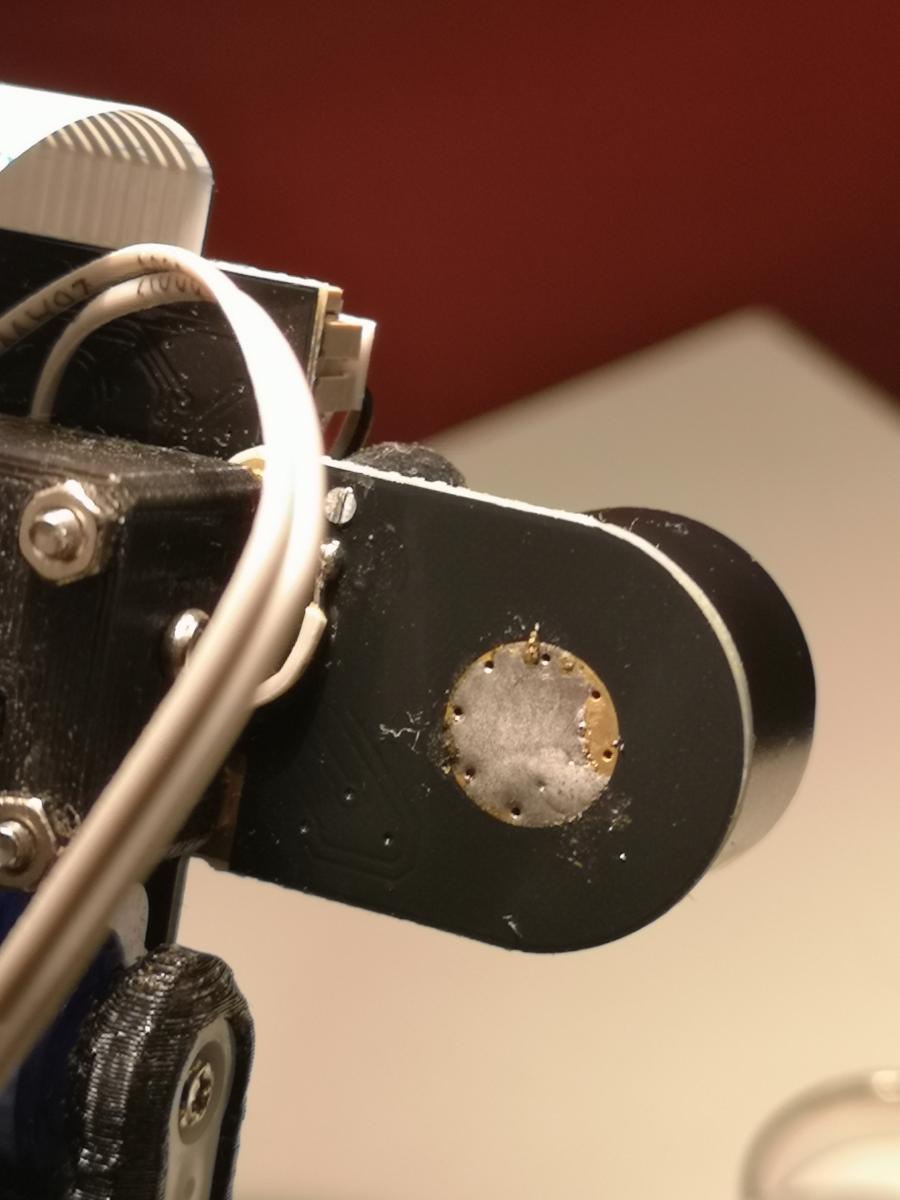
3. turn module upside down, and heat the center pad on the backside to unsolder the IR LED case. use tweezer to gently pull on the IR LED case.
4. add some flux to the front center pad
5. place new LED and solder both pins of the new LED to the module
6. heat center pad on the backside to solder the new LED case to the front center pad. (max 5s)
backside looks like this:
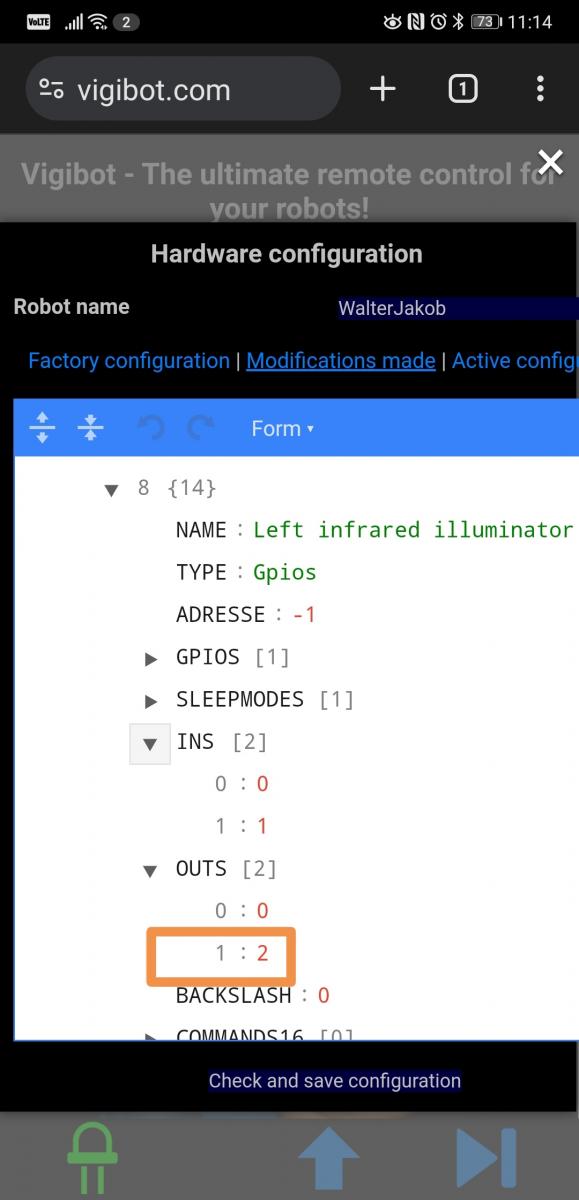
7. Set OUTS to mode 2 FLOATING.
additional notes:
the white LED uses a similar current to the IR LED. i suggest turning the potentiometer and checking if it hets hot after 5min. it should only get warm.
3.3V is enough for all LED colors
by bridging the 2 pins on the photo above, it uses the 3.3V from the camera module instead of only 2.5V.
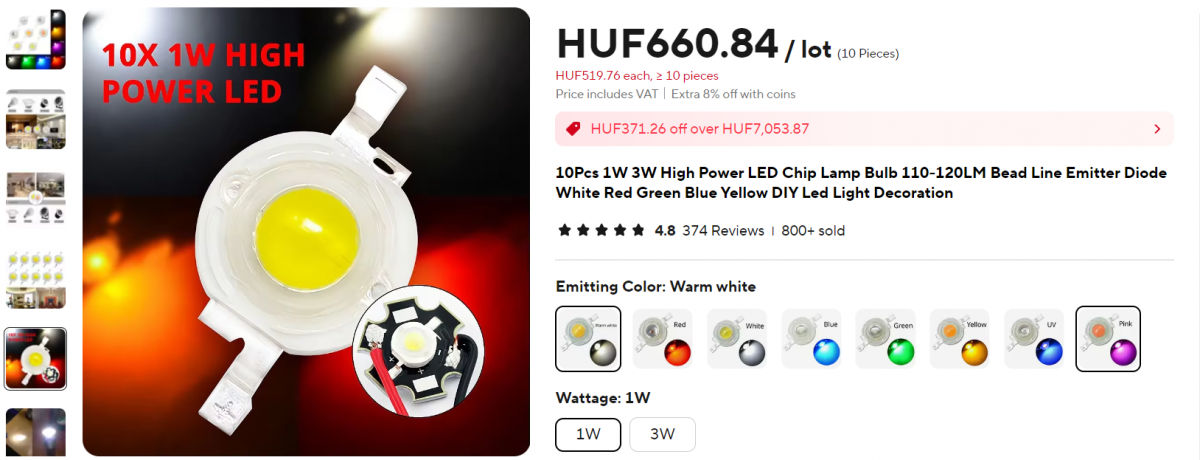
3W White or any other LED color in this form factor. 1W work too but might have a smaller form factor. Current/Wattage is limited (1W, 3W are the same brightness).
https://www.aliexpre...2610911849.html
1. bridge the 2 circled pins from the photo together using a small wire or wirewrap. use a magnifying glass and solder flux.
2. unsolder and bend both pins of the IR LED
3. turn module upside down, and heat the center pad on the backside to unsolder the IR LED case. use tweezer to gently pull on the IR LED case.
4. add some flux to the front center pad
5. place new LED and solder both pins of the new LED to the module
6. heat center pad on the backside to solder the new LED case to the front center pad. (max 5s)
backside looks like this:
7. Set OUTS to mode 2 FLOATING.
additional notes:
the white LED uses a similar current to the IR LED. i suggest turning the potentiometer and checking if it hets hot after 5min. it should only get warm.
3.3V is enough for all LED colors
by bridging the 2 pins on the photo above, it uses the 3.3V from the camera module instead of only 2.5V.
3W White or any other LED color in this form factor. 1W work too but might have a smaller form factor. Current/Wattage is limited (1W, 3W are the same brightness).
https://www.aliexpre...2610911849.html
- Mike118 aime ceci
#112075 Vigibot Pi to multiple ESP32 WLAN Communications Example
Posté par
- 15 décembre 2020 - 11:11
UPDATE 16.08.2021: find the updated code and guide on GitHub: https://github.com/e...-Multiple-ESP32
Note:
if you want to control a single ESP32 robot/gadget, use this guide instead:
https://www.robot-ma...ample/?p=111377
if you want to control multiple ESP32 robots/gadgets, continue.
This code allows control of multiple ESP32 robots or gadgets over WLAN using vigibot.
A raspberry is still required for the camera and needs to be on the same network. the serial data usually sent and received to an Arduino over UART ( https://www.robot-ma...cation-example/ ), is being sent over WLAN instead, allowing control of small robots or gadgets.
usage example: a pi with a camera watches an arena where multiple small ESP32 robots can be driven, the ESP32 bots do not have an on-board camera.
second usage example: open or close a door or toy controlled fron an ESP32.
1) assign your pi a static IP address
https://thepihut.com...-address-update
2) the pi needs to create a virtual serial point that's accessible over WLAN from the ESP32. install socat and ncat on your raspberry:
- network info
- raspberry host IP
- vigibot NBpositions (if different from default)
into the following sketch and upload it to your ESP32 from the arduino IDE using a usb cable.
note: only one esp can send a reply, make sure `client.write();` is only being called on one ESP32, all others only listen without sending any data back. (i recommend that one ESP32 sends data back, this way the vigibot robot won't wake up if the ESP32 isn't connected properly, which makes it easier to notice that it isn't working.)
8) open the serial monitor to confirm a successful WLAN and TCP client connection.
9) test the pi <-> ESP connection by logging in as root in a new shell (needs root) :
10)if it works add it to start at boot:
11) add an entry on the vigibot online remote control config -> SERIALPORTS -> 3 with value: "/dev/ttyVigi0"
12) set WRITEUSERDEVICE to "3"
13) if you set up an ESP32 to send data back:
set READUSERDEVICE to "3"
restart the client and wake your robot up, if it wakes up then everything works.
related notes:
you can add a dummy client from the command line, in case you want to check if the vigibot frames are made available:
similarly it's theoretically also possible to fetch this data from another computer or custom script/application.
there's an outage happening every few weeks or so, from which it doesn't recover.
it looks like ncat doesn't open the socat socket if there's too much data buffered. the workaround is to manually clear the socat socket using
Note:
if you want to control a single ESP32 robot/gadget, use this guide instead:
https://www.robot-ma...ample/?p=111377
if you want to control multiple ESP32 robots/gadgets, continue.
This code allows control of multiple ESP32 robots or gadgets over WLAN using vigibot.
A raspberry is still required for the camera and needs to be on the same network. the serial data usually sent and received to an Arduino over UART ( https://www.robot-ma...cation-example/ ), is being sent over WLAN instead, allowing control of small robots or gadgets.
usage example: a pi with a camera watches an arena where multiple small ESP32 robots can be driven, the ESP32 bots do not have an on-board camera.
second usage example: open or close a door or toy controlled fron an ESP32.
1) assign your pi a static IP address
https://thepihut.com...-address-update
2) the pi needs to create a virtual serial point that's accessible over WLAN from the ESP32. install socat and ncat on your raspberry:
sudo apt install socat ncat3) create a new script:
sudo nano /usr/local/ncat_esp.sh4) paste the following code:
#!/bin/bash

sudo socat pty,link=/dev/ttyVigi0,rawer,shut-none pty,link=/dev/ttySrv,rawer,shut-none &

while true
do
  sleep 1
  sudo ncat -l -k -4 --idle-timeout 15 7070 </dev/ttySrv >/dev/ttySrv
  date
  echo "restarting ncat"
done
5) add permissions
sudo chmod +x /usr/local/ncat_esp.sh6) run the script
sudo /usr/local/ncat_esp.sh7) insert your
- network info
- raspberry host IP
- vigibot NBpositions (if different from default)
into the following sketch and upload it to your ESP32 from the arduino IDE using a usb cable.
note: only one esp can send a reply, make sure `client.write();` is only being called on one ESP32, all others only listen without sending any data back. (i recommend that one ESP32 sends data back, this way the vigibot robot won't wake up if the ESP32 isn't connected properly, which makes it easier to notice that it isn't working.)
Spoiler
8) open the serial monitor to confirm a successful WLAN and TCP client connection.
9) test the pi <-> ESP connection by logging in as root in a new shell (needs root) :
su -and sending a test text frame:
echo '$T hello from cli $n' > /dev/ttyVigi0the arduino serial monitor now says "hello from cli "
10)if it works add it to start at boot:
sudo nano /etc/rc.localand add
/usr/local/socat-esp.sh &above the line "exit 0".
11) add an entry on the vigibot online remote control config -> SERIALPORTS -> 3 with value: "/dev/ttyVigi0"
12) set WRITEUSERDEVICE to "3"
13) if you set up an ESP32 to send data back:
set READUSERDEVICE to "3"
restart the client and wake your robot up, if it wakes up then everything works.
related notes:
you can add a dummy client from the command line, in case you want to check if the vigibot frames are made available:
sudo socat tcp:localhost:7070 -
similarly it's theoretically also possible to fetch this data from another computer or custom script/application.
there's an outage happening every few weeks or so, from which it doesn't recover.
it looks like ncat doesn't open the socat socket if there's too much data buffered. the workaround is to manually clear the socat socket using
sudo cat /dev/ttySrvand then cancel with `ctrl-c`
- zavatha, Melmet, Microrupteurman et 1 autre aiment ceci
#111269 how to add an intro video to your robot
Posté par
- 25 septembre 2020 - 10:59
it's possible to add a custom intro / instructions video to your robot.
be aware that this is to add an intro video to your existing robot with a real camera already in place, and not to add a «video only bot», check the #rules-documentation channel on discord for the official rules.
you can use the intro so people see your robot from a different perspective (like a mirror would), or for special instructions that may not be apparent.
also make sure that the intro video is not the default view of your robot (explained in step 5).
Standard setup, without video sound:
1) login via ssh and create a symlink to ffmpeg:
sudo ln -s /usr/bin/ffmpeg /usr/local/vigiclient/processdiffintro
2) create a second symlink to your video (change the Rick _Astley path) :
sudo ln -s /home/pi/Rick_Astley_Never_Gonna_Give_You_Up.mp4 /usr/local/vigiclient/intro
3) dublicate HARDWARE CONFIGURATION -> CAMERAS -> 0 , and set CAMERAS -> 1 -> SOURCE : 7
(use "TREE" or "TEXT" layout, SOURCE number is currently 7, but may change)
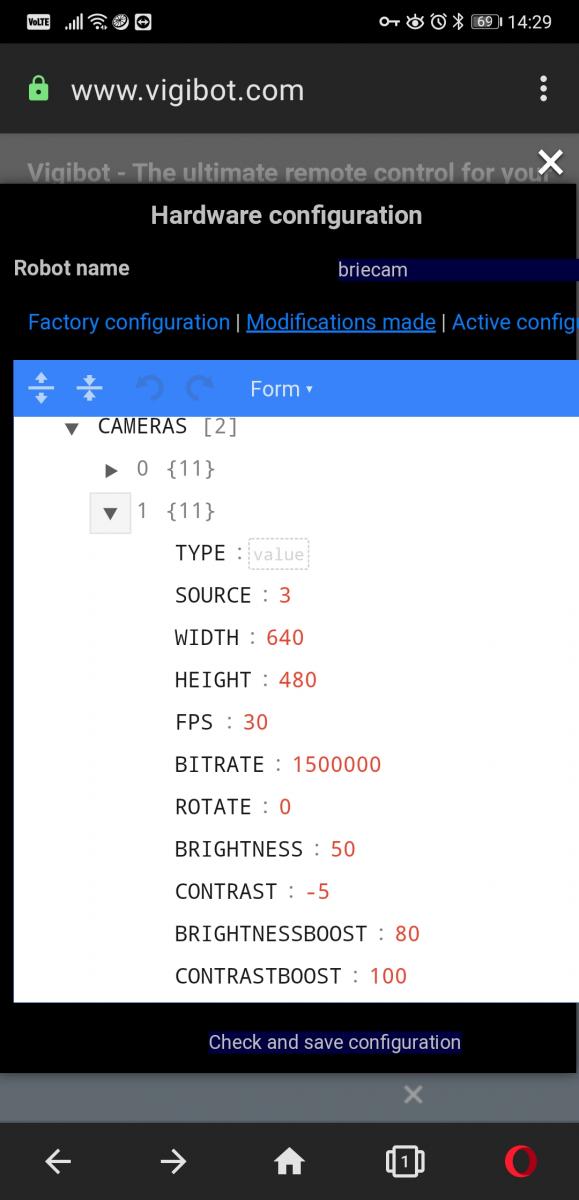
4) dublicate REMOTE CONFIGURATION -> COMMANDES -> 0 , and set your created camera number in COMMANDES -> 0 -> CAMERA : 1
(use "TREE" or "TEXT" layout)
5) set REMOTE CONFIGURATION -> DEFAUTCOMMANDE : 1 , so that it doesn't always start playing when clicking the stop button. (instead requires pressing the prev/left button)
restart robot client, now your robot will play the video.
OPTIONAL: Play video sound on the robots speaker:
6) copy the whole "CMDDIFFUSION" array from /usr/local/vigiclient/sys.json into your /boot/robot.json file. (if Vigibot pushes an update to sys.json you will have to manually update/re-copy the array.)
7) in your robot.json, replace the ".../processdiffintro" array entry, with the following ffmpeg command. On the last line " plughw:1" enter your PLAYBACKDEVICE number, you can figure that out with the command `alsamixer` -> F6.
] , [
   "/usr/local/vigiclient/processdiffintro",
   " -loglevel fatal",
   " -stream_loop -1",
   " -re",
   " -i /usr/local/vigiclient/intro",
   " -c:v h264_omx",
   " -profile:v baseline",
   " -b:v BITRATE",
   " -flags:v +global_header",
   " -bsf:v dump_extra",
   " -f rawvideo",
   " -vf 'scale=640x480:force_original_aspect_ratio=decrease,pad=ih*4/3:ih:(ow-iw)/2:(oh-ih)/2'",
   " tcp://127.0.0.1:VIDEOLOCALPORT",
   " -f alsa",
   " -filter:a volume=0.25",
   " plughw:1"
  ]
robot.json should then look something like this:
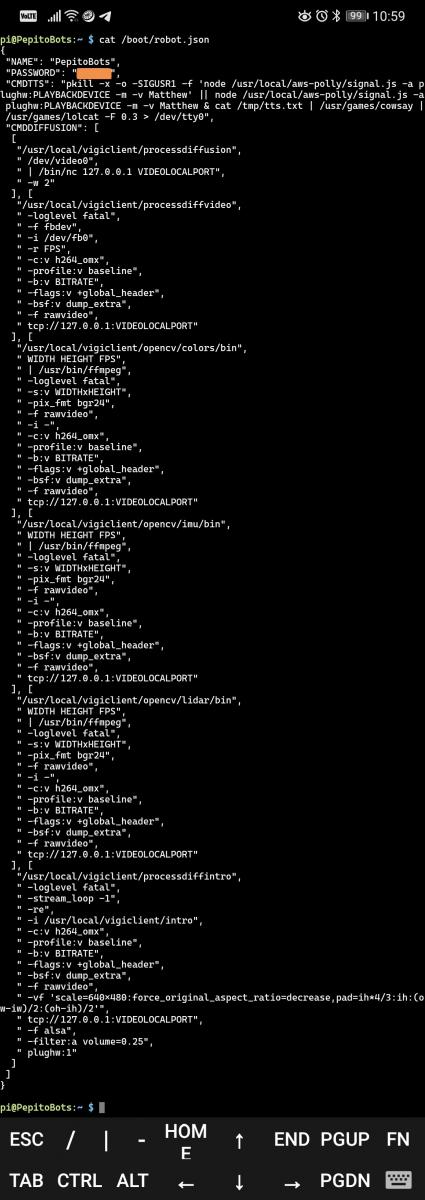
OPTIONAL 2: Route video sound directly into the Vigibot audio channel (without playing on the speaker):
Todo: ask Pierre
Thanks mike118 for the official vigibot logo animation that we can use in our custom intro video.
it's here as direct download:
https://www.robot-ma...igibotintro.mov
and here on youtube:
- Microrupteurman et Mike118 aiment ceci
#110935 speaker test and review thread
Posté par
- 30 août 2020 - 10:03
post your results here of all the speakers you've tested for a raspberry pi.
simply post a photo or/and link, and say how good or bad the audio quality is.
i find it difficult to find a small, easy to install speaker for my robots that has good audio quality so people understand the Text-To-Speech. but this thread is not limited to robots' TTS, and may be helpful for other applications too!
so far i see these different methods of using a speaker on raspberry pi:
- 3.5mm speaker without amp (psa: usually too quiet)
- 3.5mm speaker with amp, maybe battery too
- a product with amplifier & speaker together
- separate amplifier & separate speaker
- bluetooth speaker, maybe with battery
- GalenSa aime ceci
#110796 how to use the Amazon Alexa voice on your robot
Posté par
- 08 août 2020 - 10:48
please note that the following app connects to amazon using my access keys. a decent amount of requests are included so feel free to use it for your robot or your other raspberry projects. if you wish to use your own credentials, check out the GitHub repo, which describes the node source code without any access keys:
https://github.com/e...nment/aws-polly
to use the pre-authenticated executable:
1) because i can't put my access keys public, you will have to send me a PM or discord @firened#1228 .
2) add permission
to use a different voice, replace "Mathieu" twice in your robot.json file with a different voice-id.
Listen to some voice examples:
https://www.amazonaws.cn/en/polly/
Full list of available voices: (write voice names without phonetics. Léa -> Lea)
https://docs.aws.ama.../voicelist.html
see all these TTS related posts:
Amazon Alexa TTS
picoTTS
Google TTS
Enable espeak markup language
dectalk (moonbase Alpha) TTS
https://github.com/e...nment/aws-polly
to use the pre-authenticated executable:
1) because i can't put my access keys public, you will have to send me a PM or discord @firened#1228 .
2) add permission
sudo chmod +x /usr/local/aws-polly-signed-signal3) install dependency
sudo apt install mpg1234) edit your robot.json file
sudo nano /boot/robot.jsonand add
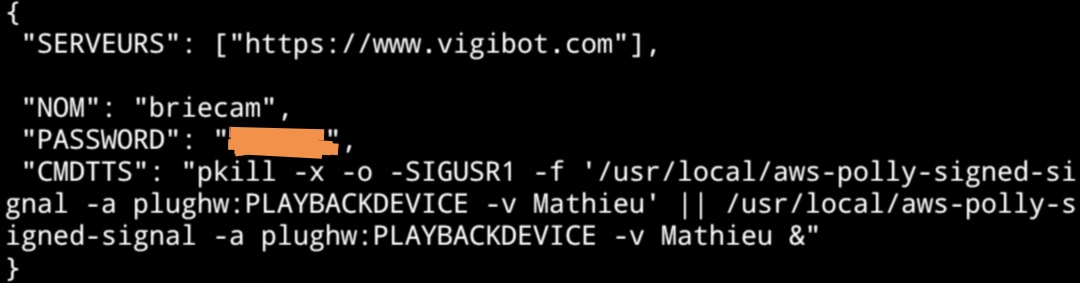
,"CMDTTS":"pkill -x -o -SIGUSR1 -f '/usr/local/aws-polly-signed-signal -a plughw:PLAYBACKDEVICE -m -v Mathieu' || /usr/local/aws-polly-signed-signal -a plughw:PLAYBACKDEVICE -m -v Mathieu &"it should then look like this:
to use a different voice, replace "Mathieu" twice in your robot.json file with a different voice-id.
Listen to some voice examples:
https://www.amazonaws.cn/en/polly/
Full list of available voices: (write voice names without phonetics. Léa -> Lea)
https://docs.aws.ama.../voicelist.html
see all these TTS related posts:
Amazon Alexa TTS
picoTTS
Google TTS
Enable espeak markup language
dectalk (moonbase Alpha) TTS
- Mike118 aime ceci

